Core Modules
GenAI
AI tools, models, and embeddings that power intelligent automation.
GenAI is Amantra’s generative AI management layer. It enables you to connect large language models (LLMs), build vector-based knowledge bases, and create custom AI tools, all usable within your workflows and digital agents.
What You Can Do with GenAI
Connect LLMs: Link your OpenAI, Azure OpenAI, or custom LLM endpoints
Vector Databases: Store documents as embeddings for semantic search
Custom Tools: Build API-backed tools that agents can call
Retrieval Tools: Tools that search your vector knowledge base
Native Tools: Built-in utility tools (date, math, text processing)
How GenAI Powers Amantra
Your Documents → Embeddings → Vector DB → Semantic Search → Agent/Workflow
For example, an HR digital agent can:
Receive an employee question about leave policy.
Use a retrieval tool to semantically search the HR policy documents.
Feed the relevant policy text to an LLM.
Return a natural language answer to the employee.
Key Concepts
Embeddings
Embeddings convert text into numerical vectors, mathematical representations that capture the meaning of the text. Similar text produces similar vectors, enabling semantic search (“find documents about PTO” even if the document uses “annual leave”).
Vector Database
A Vector Database stores these embeddings and enables fast similarity search across millions of documents.
Retrieval-Augmented Generation (RAG)
RAG is a technique where an AI searches a knowledge base for relevant context, then uses that context to generate an accurate, grounded response, rather than relying purely on its training data.
In This Section
Vector Database: Store and search your document knowledge base
Custom Tools: Build API tools for agents to use
Retrieval Tools: Semantic search tools for knowledge bases
Native Tools: Built-in utility tools
Vector Database
A Vector Database in Amantra stores your organization’s documents as AI-readable embeddings, enabling digital agents to search them semantically, finding the right information even when the exact words don’t match.
Creating a Vector Database
Go to GenAI → Vector DB.
Click + New Vector DB.
Configure:
Name: Identify this knowledge base
Description: What documents this contains
Embedding Model: The AI model used to generate embeddings
Chunk Size: How large each text segment should be (default: 500 tokens)
Overlap: Token overlap between chunks (prevents context loss at boundaries)
Click Create.
Adding Documents
After creating a vector DB, add documents to it:
Open the vector DB.
Click + Add Documents.
Upload files (PDF, Word, TXT, Markdown) or connect to:
SharePoint folder
Google Drive folder
A URL to be crawled
Amantra automatically processes, chunks, and embeds the documents.
Keeping Documents Up to Date
Set a Sync Schedule to automatically re-process documents from connected sources:
Manual: Only update when you click Sync
Daily / Weekly: Automatically re-index at the specified time
Searching the Vector DB
You can test searches directly in the UI:
Open a vector DB.
Click Test Search.
Type a natural language query.
Amantra returns the most semantically relevant document chunks. This helps verify that your knowledge base is returning relevant results before deploying it in a workflow or agent.
Vector DB in Workflows and Agents
Reference a vector DB in:
Synapse Workflows: Use the Vector Search activity.
Agentix Agents: Assign a Retrieval Tool linked to the vector DB.
GenAI Tools: Build a retrieval tool for use across multiple agents.
Creating a Vector Database & Adding Documents (Unified Flow)
Go to GenAI → Vector DB and click + New Vector DB. Configure the database and import files in a single flow: Name (identify the knowledge base), Description, Source File (URL to crawl, or File Upload for local PDF, Word, TXT, or Markdown documents, click Add Another for multiple sources), Chunk Size (e.g., default 500 tokens), Chunk Overlap (token overlap between chunks to prevent context loss), and the Embedding Provider, Connection, and Model (choose a model containing “-embed” in its name, e.g., text-embedding-3). Click Save to automatically process, chunk, and embed the documents.
Keeping Documents Up to Date: set a Sync Schedule, Manual (update only when you click Sync) or Daily/Weekly (automatically re-index at the specified time).
Searching the Vector DB: open a vector DB, click Test Search, and type a natural language query. Amantra returns the most semantically relevant document chunks, helping you verify the knowledge base before deploying it in a workflow or agent.
Custom Tools
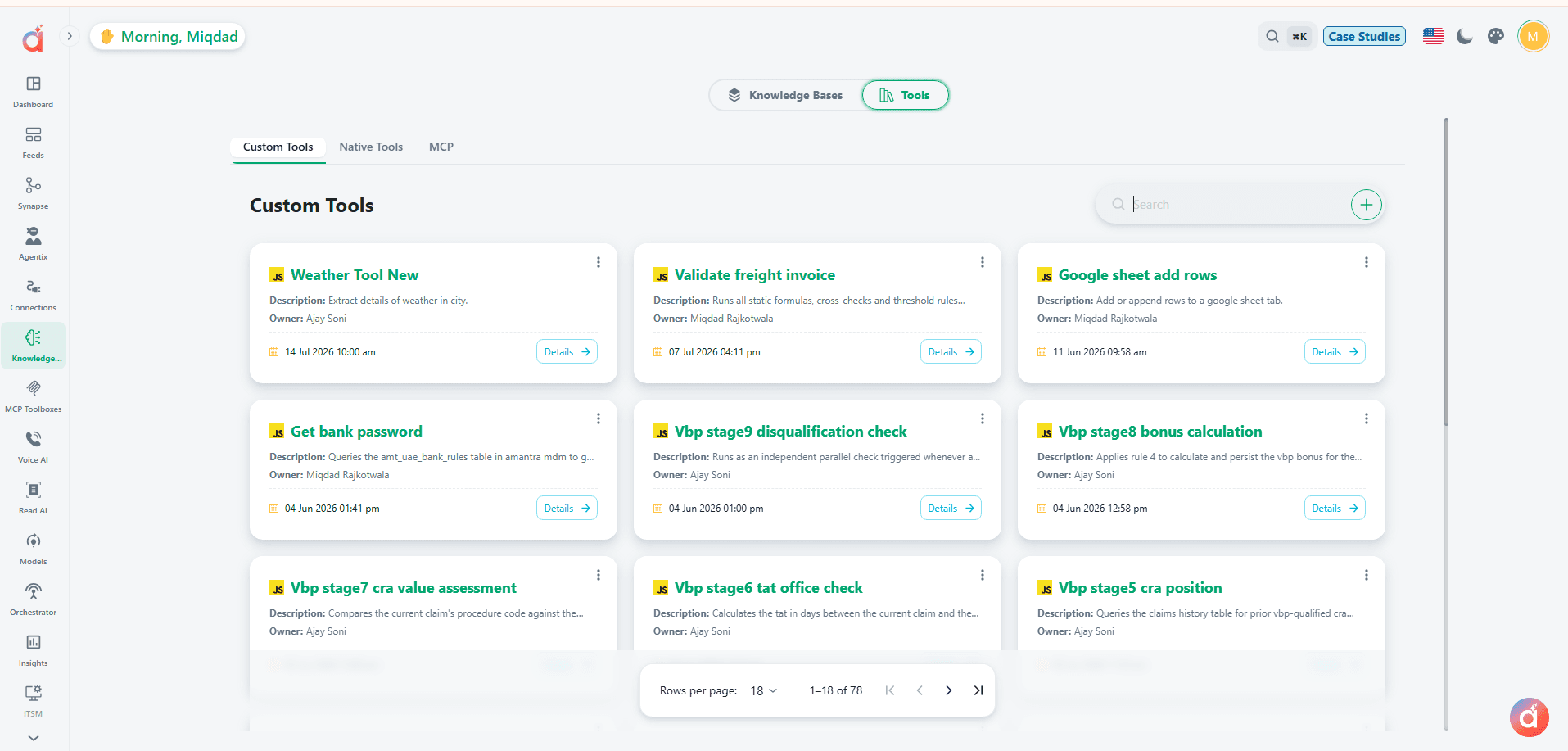
Custom Tools are API-backed capabilities that you define and make available for digital agents to use. When an agent determines it needs to call an external system, it invokes a custom tool.
What Is a Custom Tool?
A custom tool is essentially an API wrapper: It defines:
What the tool does (description for the agent)
What inputs it requires
How to call the API
What output it returns
The agent reads the tool description, decides when to use it, provides the inputs, and receives the output, all autonomously.
Creating a Custom Tool
Go to GenAI → Tools → Custom.
Click + New Tool.
Fill in:
#### Basic Information
Name: Tool identifier (snake_case, e.g., `get_customer_record`)
Display Name: Human-readable name
Description: Critical. Explains to the agent what this tool does and when to use it. Write clearly.
#### Input Schema
Define the parameters the agent must provide to use this tool:
#### API Configuration
Method: GET, POST, PUT, PATCH, DELETE
URL: API endpoint (can include `{{input.paramName}}` placeholders)
Headers: Static or dynamic HTTP headers
Auth: Reference a credential from the Credential Vault
Request Body: Template for POST/PUT body
#### Output Mapping
Define which fields from the API response the agent should receive. You can pass the full response or map specific fields.
Click Save, then Test to verify the tool works correctly.
Writing Good Tool Descriptions
The description is what the agent uses to decide whether to use this tool. Write it as if explaining to a smart person what the tool does:
Bad: Gets customer data
Good: Retrieves a customer record from the CRM by their customer ID. Returns name, email, account status, and optionally their purchase history. Use this when you need to look up information about a specific customer.
Using Custom Tools in Agents
When creating or editing a digital agent, add your custom tool in the Tools section. The agent will automatically decide when to invoke it based on the task at hand.

Retrieval Tools
Retrieval Tools are specialized tools that search a Vector Database and return relevant information. They enable agents to answer questions by pulling context from your organization’s knowledge base.
What Is a Retrieval Tool?
When an agent needs to answer a question like “What is our refund policy?” it cannot rely on its training data. Instead, it uses a retrieval tool to:
Convert the question into an embedding
Search the vector database for similar content
Return the most relevant document chunks to the agent
The agent uses that context to formulate an accurate answer
Creating a Retrieval Tool
Go to GenAI → Tools → Retrieval.
Click + New Retrieval Tool.
Configure:
Name: Identifier for the tool
Description: What knowledge base this searches and when to use it
Vector Database: Which vector DB to search
Chunk Size: How many chunks to return (default: 5)
Chunk Overlap: Minimum relevance score (0.0-1.0) to include a result
Search Mode: Semantic, keyword, or hybrid
Click Save.
Testing a Retrieval Tool
Open the retrieval tool.
Click Test.
Enter a query.
Review the returned chunks, verify they are relevant to the query.
If results are poor:
Check that relevant documents are loaded in the vector DB.
Try adjusting Chunk Size or Chunk Overlap.
Ensure the embedding model is appropriate for your document language.
Adding to Agents
Assign retrieval tools to digital agents the same way as custom tools, in the Tools section of the agent configuration.
Tip: Always write a clear description for your retrieval tool explaining what knowledge it contains. This helps the agent decide when to use it.
Example description:
Searches the company HR policy knowledge base. Use this when an employee asks about leave policies, code of conduct, benefits, performance review procedures, or other HR-related topics.
Native Tools
Native Tools are built-in utility tools provided by Amantra. They require no configuration and are available for use in any digital agent.
Available Native Tools
Extraction Tool: Extracts data from received files directly without requiring ReadAI.
My Sql Data Connector: Connects to MySQL databases to query specified tables and execute functions as instructed by the bot.
Click House: Connects to ClickHouse databases to query specified tables and execute functions as instructed by the bot.
Using Native Tools
Native tools are pre-installed and available to all agents. To add them to an agent:
Open the agent configuration.
Go to Tools.
Click + Add Tool → Native Tools.
Select the tools you want the agent to have access to.
Native Tools vs. Custom Tools
Setup required: No or Yes (define API + schema)
Calls external systems: No or Yes
Examples: Date math, text formatting / Get customer record, create ticket
Models
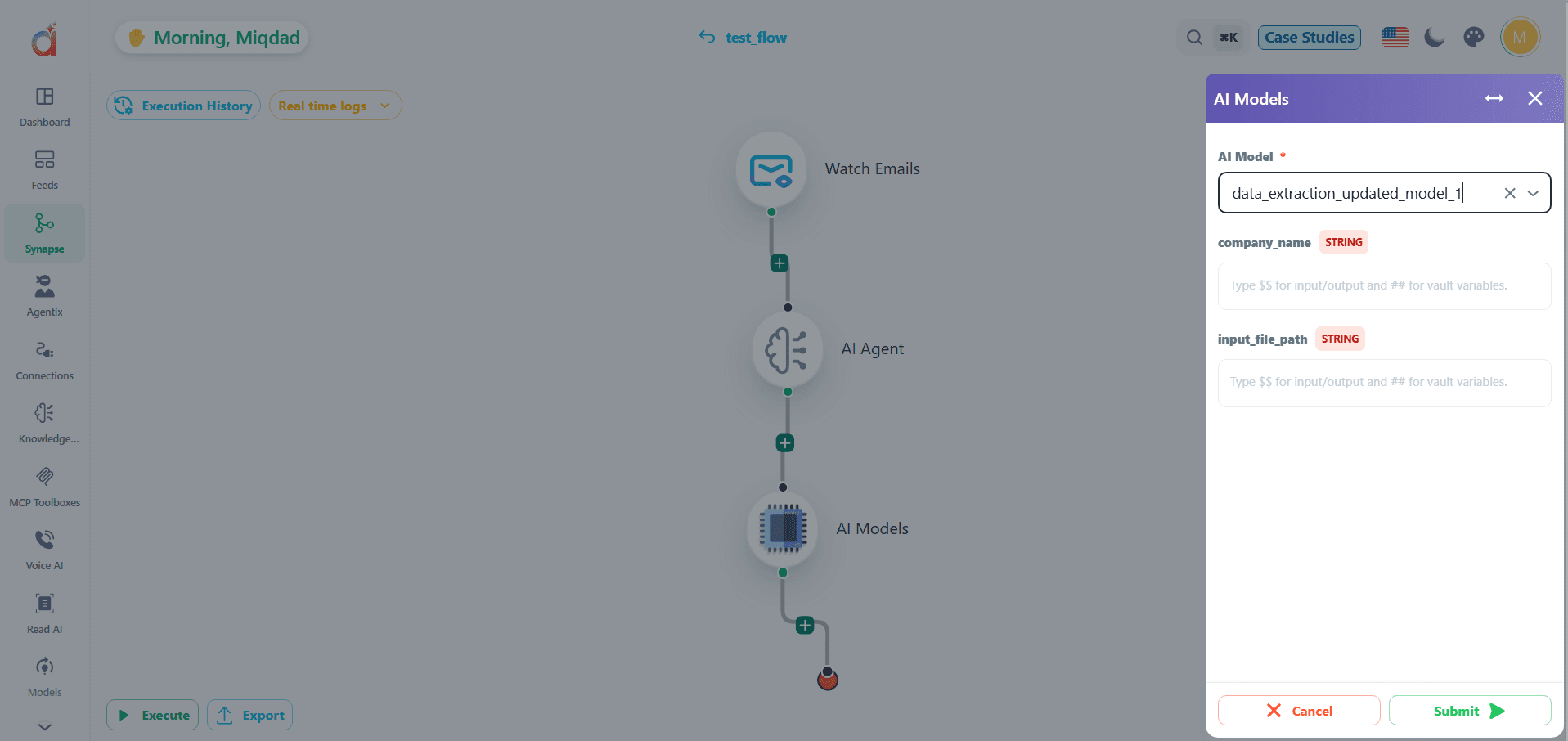
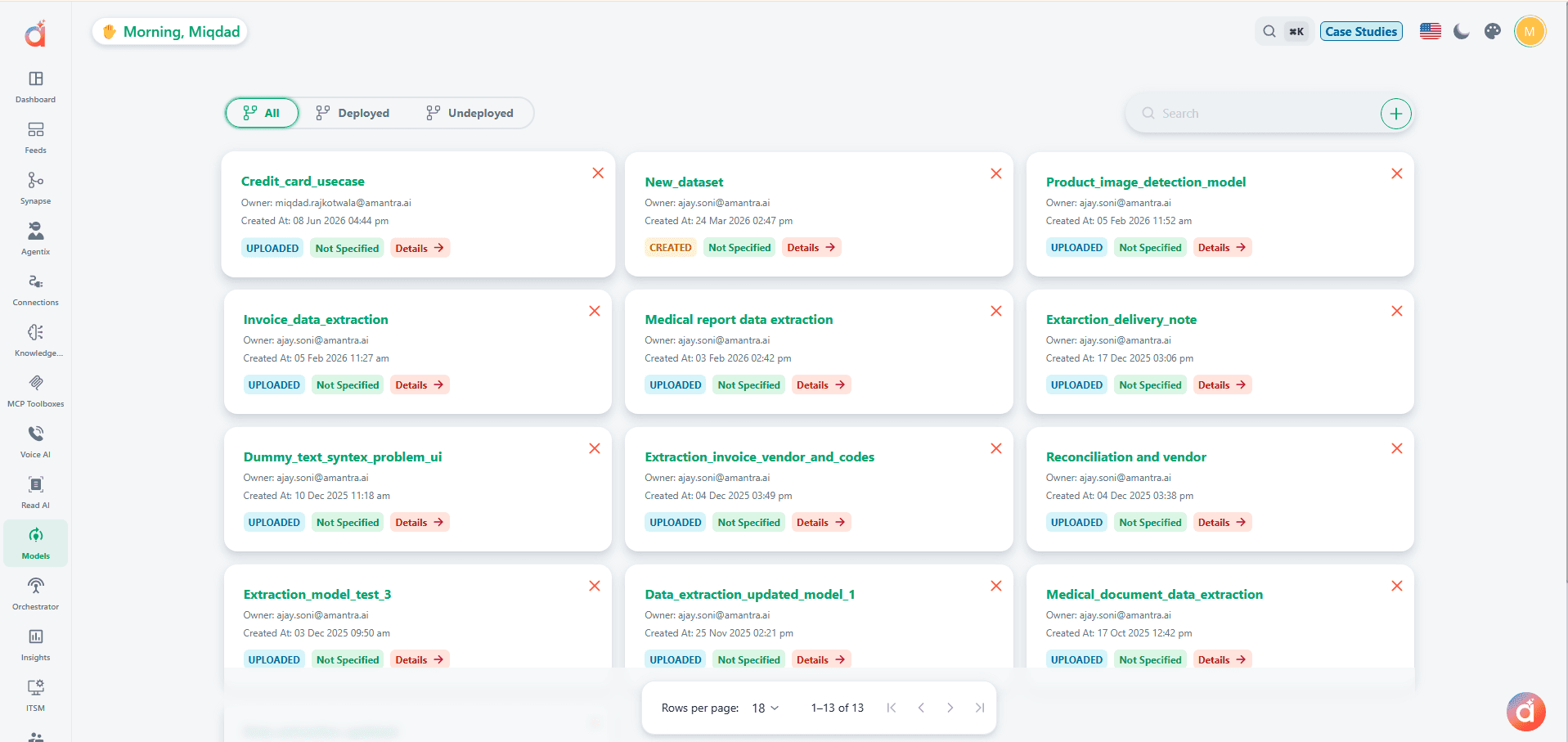
The module provides a central place to view and configure the AI models (across providers) available to workflows and digital agents.